Who it's fordevelopers and architects
“Why did we build it this way?”
With their yes, Recordist writes up your design reviews on your own devices, with nothing joining the call.

Free, with no password. Your email brings 7 days of Pro, with no card. By default, nothing is recorded until you say yes.
The browser demo is the real app with made-up meetings.
Summary
- What the client or product said they need, in their words: Kevin said, "The thing we can't lose is an order."
- Constraints and figures, exactly as said: Kevin said the warehouse system can be "down for an hour". You said orders peaked last Black Friday at "about 300 a minute".
- Options talked through, and what each person said about them: Lauren described calling the warehouse straight from checkout, or putting the orders on a queue, and said, "a direct call drops orders. The queue keeps them." Kevin said, "Then let's go with the queue."
Action items
- Write up the queue design and send it round · You, Monday“I'll write up the queue design and send it round by Monday” Time in call 08:15
- Check what the warehouse API does with a duplicate order · Lauren, Wednesday“I'll check what the warehouse API does with a duplicate order by Wednesday” Time in call 08:40
Open questions
- What happens to an order that fails three times?
Written with the notes, for you to read and send.
Recordist sends nothing, and the follow-up is yours to change and send from your own mail.
The follow-up comes with Pro, and every new install includes 7 days of Pro, with no card. On the Fast built-in model, no email is filled in for you. You tick the lines you want, and the draft is made from exactly those.
Follow-up draftPro
Hi Kevin and Lauren, Kevin said the one thing we can't lose is an order, even if the warehouse system is down for an hour, and last Black Friday orders peaked at about 300 a minute. Lauren said a direct call from checkout drops orders at that rate and a queue keeps them, and Kevin said, "Then let's go with the queue." Next steps: - I'll write up the queue design and send it round by Monday. - Lauren will check what the warehouse API does with a duplicate order by Wednesday. Thanks,
Example, written by hand from the same staged call.
Ask Recordist for notes in this shape, with the template
- In Recordist, open Settings, then Templates, and press New template.
- Copy the three fields across, over the words already there. Leave summary and action items ticked, and tick questions and followup email as well.
- Press Save. To use it on every call, choose it under Settings, AI notes, Default template. For a call you have already recorded, choose it above the notes and press Regenerate.
Your own templates are on every plan, and the words are yours to change. How templates and the check against the transcript work.
Name
Design review
Short description
The need as it was said, the options talked through, and who took what.
Instructions for the model
Write the notes of a technical call, such as a design review, an architecture discussion or a call with a client about what they need. Write the summary as a list with exactly these labels, one short bullet each, and leave out a label nobody talked about:

- What the client or product said they need, in their words:
- Constraints and figures, exactly as said:
- Options talked through, and what each person said about them:
- What someone said is a risk or still open, in their words:
- Next call:

Keep the names of systems, versions and figures exactly as they were said. When someone chose an option, quote them. The action items are what each person said they would do, with the day when one was said. Never write in your own words that something was decided or agreed, and never recommend an option or add one nobody talked about.
-
Does a bot turn up in the design review?
No. Nothing joins the call and nothing appears in the participant list, on Teams, Google Meet, Zoom or a Slack huddle, whoever hosts. Recordist works on your own devices, so the call looks the same to everyone on it.
You still ask, because Recordist doesn't tell anyone it is there. One way to say it at the start: "Is it all right if I record this so I can listen instead of typing? The recording stays with me." If someone would rather not, click Not this one. The free consent script tool gives you the words and the rule for where everyone is.
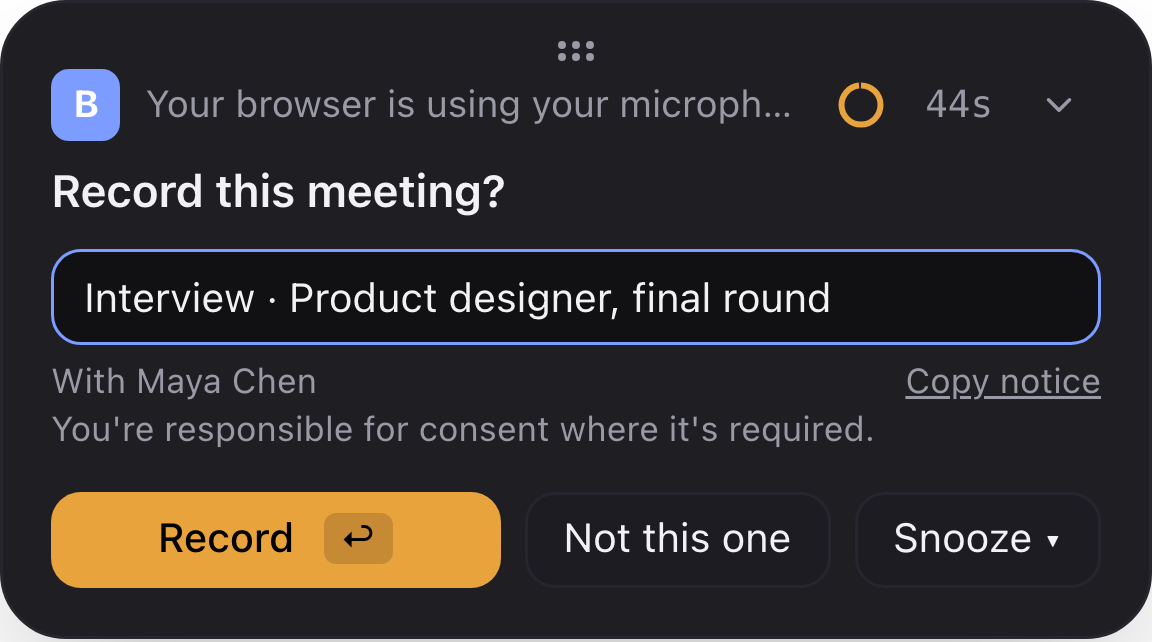
The card that appears when a call starts. Nothing is recorded until you click Record, unless you have put that app on the automatic-recording list in Settings. -
What is the quickest way in, on a Meet or Teams call in the browser?
Add the free Recordist extension from the Chrome Web Store, join the call in Chrome, turn on captions and press Start transcript. A live transcript builds up in the side panel beside the call, with the names the captions show. It starts only when you press Start, and it reads the meeting's own captions, so the names of systems come out as the captions spell them.
The transcript is kept in your browser, to copy, download or delete when the call ends. Get notes from this call, in the panel, hands it to the Recordist app, which writes the notes. The guides to requirements call notes and sprint refinement and planning notes show each step.
-
And for a Slack huddle, or Teams and Zoom in their desktop apps?
Use the free Recordist app, from the download page. When a huddle or a call starts using your microphone, a small card asks "Record this meeting?", and by default nothing is recorded until you click Record. It hears your microphone and the sound of the call on your own devices and transcribes that sound itself, so it needs no captions, no plugin and no setting from whoever hosts.
Recordist doesn't connect to Slack, and it hears a huddle the way it hears any other call. When the call ends the transcript is ready, and the notes follow a few minutes later.
-
Where did the client say an order can never be lost?
Type a word such as "queue" or "warehouse", and Recordist lists every meeting where it was said, with the sentence and the time. Click a result to open the meeting at that line, then click the time to hear it while the audio is kept. The search index is stored on your devices and works offline.
On Pro, Ask puts a plain question to your recent meetings, such as "why did we put the orders on a queue?", and the answer names the meeting and the time it comes from.
-
Will the notes say what we decided?
They say what was said. When someone chose an option out loud, the template asks the notes to quote them, as the sample above keeps the client's own words, "Then let's go with the queue." It tells the notes never to write in their own words that something was decided or agreed, never to recommend an option, and never to add one nobody talked about.
The notes can still be wrong, so read them against the transcript before they go into a design doc. Clicking any line of the transcript plays that moment while the audio is kept.
-
Can the notes go into our decision records, or my editor?
Copy all notes copies a meeting's notes, and on every plan a meeting exports as one Markdown file, with the summary, the moments word for word, the action items and the transcript with a time and a speaker for each turn, ready to paste into an architecture decision record or a wiki page.
Claude Desktop, Claude Code, Cursor and other MCP clients can search and read your meetings once you connect them, and the connection stays on your own devices. An assistant you connect can read your library, so connect only the ones you trust with it. How the MCP server works.
-
There are six of us on the call. Who is labelled as who?
Your microphone is labelled You. In a desktop app, such as Teams, Zoom or a Slack huddle, everyone else on the call shares one label, which you can rename for each meeting. Saying a name as you turn to someone, as in "Lauren, what would the warehouse do?", gives the notes a name to put beside what was said.
In a browser call, the extension's live transcript carries the names the captions show.
Around one table, every voice reaches the one microphone, so every line is labelled You. Check the recording before you quote anyone.
-
Where do the recordings and notes go?
They are kept with you. With the built-in engine, the audio, transcript and notes stay on your own devices, and no AI service sees them. There is no account, and we never receive your audio. The Privacy Ledger in the app lists the network requests it makes, apart from a few kinds listed in Help, none of which carries meeting content. If you choose a cloud AI provider for notes in Settings, the transcript goes to that provider under its terms, and that is off until you set it up.
If the call is about a client's system, their contract or NDA may say whether you may record at all, and if it does, it decides. The page for IT, security and legal reviewers answers what their IT will ask, and you can forward it.
-
What does it cost?
Recording, transcription, search and export are free. AI notes are unlimited during your 7 days of Pro, which begin with your email when Recordist first opens and then 3 a month. Pro removes that limit and adds Prep Briefs before you meet someone again. Its price is on the pricing page, and if you subscribe at the launch price, it stays the same for as long as you stay subscribed.