Who it's forbusiness analysts
“What exactly did they ask for?”
With their yes, Recordist writes up your requirements calls on your own devices, with nothing joining the call.

Free, with no password. Your email brings 7 days of Pro, with no card. By default, nothing is recorded until you say yes.
The browser demo is the real app with made-up meetings.
Summary
- What they asked for, in their words: Megan said, "Anything under 200 dollars, the agent approves it on the spot. Over that, it comes to me."
- Rules and exceptions they described, in their words: Of gift cards, Megan said, "Those are never refunded to a card, only as store credit."
- What someone said is unclear or still open: Megan said she is not sure whether the agent approves a refund in the CRM or in the payments tool.
Action items
- Check with the support team where agents approve refunds · Megan, Wednesday“I'll check with the support team and let you know by Wednesday” Time in call 06:57
- Send Megan a draft of the requirements to correct · You, Friday“I'll write this up as a draft and send it to you by Friday” Time in call 08:30
Open questions
- Does the new flow need to cover refunds in other currencies?
Written with the notes, for you to read and send.
Recordist sends nothing, and the follow-up is yours to change and send from your own mail.
The follow-up comes with Pro, and every new install includes 7 days of Pro, with no card. On the Fast built-in model, no email is filled in for you. You tick the lines you want, and the draft is made from exactly those.
Follow-up draftPro
Hi Megan, Thank you for walking me through refunds. You said anything under 200 dollars is approved by the agent on the spot and anything over comes to you, and that gift cards are only ever refunded as store credit. Next steps: - I'll send you a draft of the requirements by Friday, so you can tell me where I got it wrong. - You'll check with the support team where agents approve refunds, and let me know by Wednesday. Thanks,
Example, written by hand from the same staged call.
Ask Recordist for notes in this shape, with the template
- In Recordist, open Settings, then Templates, and press New template.
- Copy the three fields across, over the words already there. Leave summary and action items ticked, and tick questions and followup email as well.
- Press Save. To use it on every call, choose it under Settings, AI notes, Default template. For a call you have already recorded, choose it above the notes and press Regenerate.
Your own templates are on every plan, and the words are yours to change. How templates and the check against the transcript work.
Name
Requirements call
Short description
What the stakeholder asked for, in their words, and what is still open.
Instructions for the model
Write the notes of a requirements or elicitation call with a stakeholder. Write the summary as a list with exactly these labels, one short bullet each, and leave out a label nobody talked about:

- What they asked for, in their words:
- Rules and exceptions they described, in their words:
- Figures, dates and systems, exactly as said:
- What someone said is unclear or still open:
- Next call:

Quote the stakeholder's own words wherever you can, and never turn what they asked for into a solution. The action items are what each person said they would do, with the day when one was said. Write only what was said. Never write that something was decided, agreed or signed off, and never add a requirement nobody said.
-
Does a bot turn up on the stakeholder's call?
No. Nothing joins the call and nothing appears in the participant list, on Teams, Google Meet or Zoom, and it works the same when the stakeholder's company hosts the call on its own platform. Recordist works on your own devices, so the call looks to them exactly as it always has.
You still ask, because Recordist doesn't tell anyone it is there. One way to say it at the start: "Before we start, is it all right if I record this so I can listen instead of typing? The recording stays with me." If they would rather not, click Not this one and take notes by hand. The free consent script tool gives you the words and the rule for where everyone is.
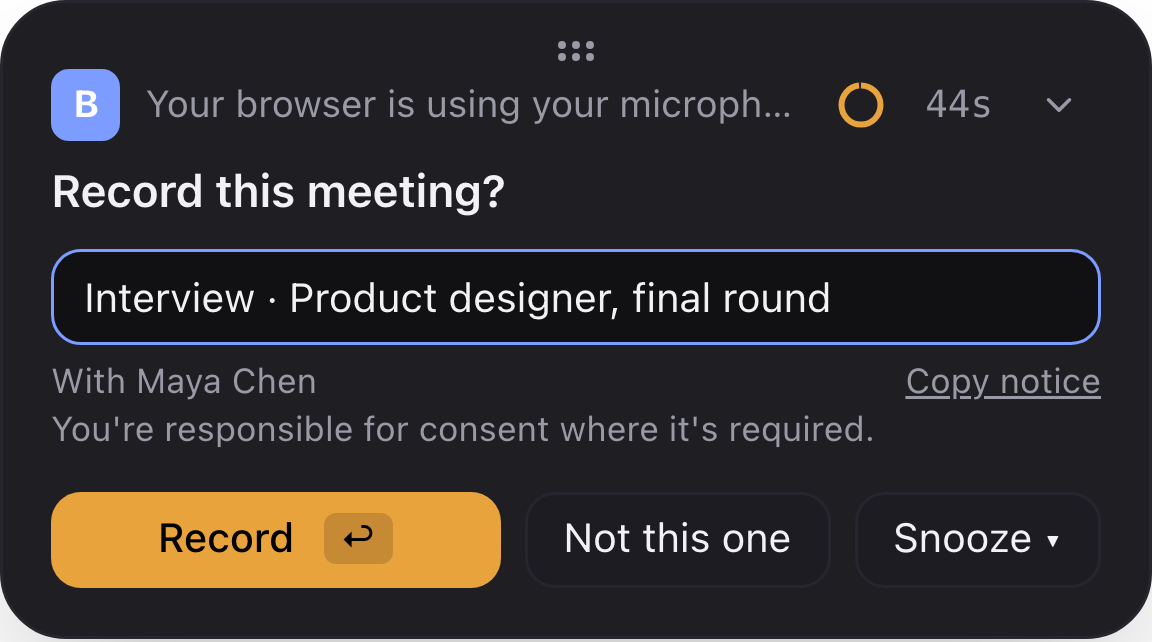
The card that appears when a call starts. Nothing is recorded until you click Record, unless you have put that app on the automatic-recording list in Settings. -
What is the quickest way in, on a Meet or Teams call in the browser?
Add the free Recordist extension from the Chrome Web Store, join the call in Chrome, turn on captions and press Start transcript. A live transcript builds up in the side panel beside the call, with the names the captions show, so you can see the stakeholder's words while you ask the next question. It starts only when you press Start, and it reads the meeting's own captions.
The transcript is kept in your browser, to copy, download or delete when the call ends. Get notes from this call, in the panel, hands it to the Recordist app, which writes the notes. The guide to requirements call notes shows each step, in the browser and in the Zoom and Teams apps.
-
And when the call is in the Zoom or Teams app?
Use the free Recordist app, from the download page. When the call starts using your microphone, a small card asks "Record this meeting?", and by default nothing is recorded until you click Record. It hears your microphone and the sound of the call on your own devices, so it needs no captions, no plugin and no setting from whoever hosts.
When the call ends the transcript is ready, and the notes follow a few minutes later, in the shape the template on this page asks for.
-
Which call was the gift card exception in?
Type a word such as "refund" or "gift card", and Recordist lists every meeting where it was said, with the sentence and the time. Click a result to open the meeting at that line, then click the time to hear it while the audio is kept. The search index is stored on your devices and works offline.
On Pro, Ask puts a plain question to your recent meetings, such as "what did Megan say about refunds over 200 dollars?", and the answer names the meeting and the time it comes from.
-
Will the notes write the requirements for me?
They keep what was said, which is what you write the requirement from. The template on this page asks for what the stakeholder asked for, the rules and exceptions they described and what is still open, each in their own words, and it tells the notes never to turn a request into a solution, never to add a requirement nobody said, and never to write that something was signed off.
The requirement itself stays yours to write. The notes can be wrong, so read them against the transcript before you quote anyone in a spec, and click any line of the transcript to hear that moment while the audio is kept.
-
There are five stakeholders in the workshop. Who is labelled as who?
Your microphone is labelled You. In a desktop app, such as Teams or Zoom, everyone else on the call shares one label, which you can rename for each meeting. Saying a name as you turn to someone, as in "Megan, how does that work today?", gives the notes a name to put beside what was said.
In a browser call, the extension's live transcript carries the names the captions show.
In a workshop around one table, every voice reaches the one microphone, so every line is labelled You. Check the recording before you quote anyone.
-
Where do the recordings and notes go?
They are kept with you. With the built-in engine, the audio, transcript and notes stay on your own devices, and no AI service sees them. There is no account, and we never receive your audio. The Privacy Ledger in the app lists the network requests it makes, apart from a few kinds listed in Help, none of which carries meeting content. If you choose a cloud AI provider for notes in Settings, the transcript goes to that provider under its terms, and that is off until you set it up.
If you work on a client's project, their contract or NDA may say whether you may record at all, and if it does, it decides. The page for IT, security and legal reviewers answers what their IT will ask, and you can forward it.
-
What does it cost?
Recording, transcription, search and export are free. AI notes are unlimited during your 7 days of Pro, which begin with your email when Recordist first opens and then 3 a month. Pro removes that limit and adds Prep Briefs before you meet someone again. Its price is on the pricing page, and if you subscribe at the launch price, it stays the same for as long as you stay subscribed.