Who it's for · For reviewers
A summary for IT, security and legal reviewers
This page is written to be forwarded as it is. It says what Recordist does with audio, transcripts and notes, what it sends over the network, how retention and deletion work, and what it can't do yet, such as central management. If your company has a policy on AI notetakers or recording, that policy comes first.
- What Recordist is
- Recordist is a Mac app that records calls from the computer's own microphone and sound output. It transcribes the audio and writes notes on the Mac. It never joins the call, so nothing is added to the participant list.
- Requirements
- Recordist requires macOS 14.6 or later on a Mac with Apple silicon. Versions for Windows and Linux aren't offered yet.
- Beta status
- The Terms say that every version before 1.0 is a beta, that a beta may corrupt or lose recordings, and that you shouldn't rely on it for meetings that matter. During a pilot, people keep taking their usual notes.
- Notarisation
- Early builds aren't notarised by Apple yet, so macOS asks once to allow the first launch. On managed work laptops, IT may need to allow it. The help page on the unidentified-developer warning explains the steps.
- Permissions
- Recordist asks for Microphone, and for Screen & System Audio Recording, which macOS requires before an app can record a call's sound. Recordist uses the audio only. Calendar and Notifications are optional. Where IT manages Screen & System Audio Recording, IT needs to allow it before the other side of a call can be recorded. The Trust Center lists each permission with its reason.
- Account, email and terms
- There is no account. A work email address receives the download link, and a person checks addresses that can't be confirmed automatically, usually within one business day. The beta form asks the person to accept the Terms, which say that someone who uses Recordist for an organisation confirms they have authority to bind it. The privacy policy states that Recordist sends no marketing email. Each request for the beta is entered once in a draw for a year of Pro.
- Where the data is stored
- Audio, transcripts, notes and the search index are kept in one data folder on each Mac, at ~/Library/Application Support/app.recordist.desktop/. Recordist doesn't encrypt these files itself, so they are encrypted at rest only when FileVault is on. An optional setting, Auto-export Markdown after each meeting, writes a copy of each meeting's notes and transcript to a folder the person chooses; it is off by default, and if that folder syncs to a cloud drive, the copies sync with it. Exports and backups are separate copies covered by your own policies.
- Network
- Recordist never uploads audio and sends no telemetry. With the built-in notes engine, no request carries meeting content. On first use the app downloads its transcription model and its notes engine. It checks for updates at launch and every six hours with a request to its own release host. The Privacy Ledger in Settings records the app's network requests with the time, host, purpose and bytes sent; the help article on the ledger lists the few kinds it doesn't record yet, none of which carries audio, transcripts or notes. The Trust Center lists every kind of request the app can make.
- Cloud AI keys
- The built-in notes engine runs on the Mac. A person can choose to connect their own cloud AI key; the transcript text and the template then go from the Mac to that provider to write the notes, and the Privacy Ledger records each of those requests with its size. There is no setting that lets IT block this centrally today.
- Assistants and the local API
- Assistants such as Claude Desktop can search meetings through a connection that exists only on the Mac; where an assistant sends what it reads depends on that assistant and its provider. The local API accepts connections only from the same Mac, and each request needs a token created on first launch. The token is stored in the data folder, so programs running under the same macOS account can read it, as they can read the meeting files. The optional gateway also has MCP HTTP and A2A ports, which are closed unless someone starts them; they accept connections only from the same Mac and don't ask for a token, so while they run, any program on that Mac can read meetings through them.
- Recording and consent
- Recordist doesn't announce itself to the other people on a call and doesn't ask them for consent; they know about a recording only if the user tells them, so your recording policy applies to Recordist as it does to any recorder. The card tells the user, "You're responsible for getting consent where it's required." Nothing is recorded from a detected call until the user clicks Record, except for an app the user adds to the automatic-recording list, which is empty by default. A person can also start a recording themselves, and a setting that lets connected agents start recordings without the card is off by default.
- Retention
- Each person chooses how long audio is kept, for example 30 or 90 days, or has it deleted as soon as the transcript is done; the default is 30 days. Automatic audio deletion removes the audio only, and the transcript and notes stay. A separate setting, Delete meetings after, removes whole meetings older than a set number of days, including transcripts and notes; it is off by default and never removes a starred meeting. Recordist applies these settings at launch and every six hours, and if one pass would delete more than half of the meetings on that Mac, it skips the pass and deletes nothing.
- Legal holds and access requests
- Meetings are stored on each person's own Mac, and search runs on that Mac. Search finds a name where it was spoken, in a meeting's title or in its notes, so also look through the Meetings list for the dates in question. To keep audio under a legal hold, set Keep audio files to Forever before the audio period ends; this keeps the audio of every meeting on that Mac. Anyone can still delete a meeting by hand, so a legal hold needs your own process. To remove a person's data, delete the meeting, or only its audio, and remove any exported copies.
- Leaving and wiping a Mac
- Settings, Privacy has Delete all my data, which removes every meeting, transcript, note and audio file on that Mac, along with the exports in the default export folder and the Privacy Ledger. Exports saved to another folder stay there. Remove everything and quit also removes the downloaded models, the settings, the licence and any API keys.
- Central management
- There is no admin console and there are no device-management settings today. Each person's settings are stored on their own Mac.
- AI and hiring decisions
- The notes give no scores or rankings. Today the Interview template asks for "strengths, concerns, and signals per competency"; in version 0.3.10 that line becomes "note what was said about each competency; do not rate, rank or recommend anyone". Recordist uses the General template unless the person sets Interview as the default. Every template runs with an instruction never to add people, topics, decisions, owners or numbers that aren't in the transcript. By default the notes carry a reminder to check against the recording before acting on them, especially for employment decisions; each person can hide it, and Copy all notes doesn't include it.
- Accuracy
- Notes can be wrong. Transcription can be less accurate for some accents and ways of speaking. In a group call everyone on the other side shares one label, and in a room every voice is labelled You. Checking a transcript against the recording needs the audio, which is deleted after 30 days by default.
- Who is responsible
- The Terms and the Privacy policy name the company that makes Recordist and give its address in Canada. The company receives no audio, transcripts or notes. Licence keys are verified on the Mac without contacting the company's servers.
- Price
- The beta is free. Pro is $6 a month and the pricing page lists a Team plan at $9 per person a month. Checkout for Pro and Team isn't open yet.
Further reading: Trust Center · Security · Privacy and data · The Privacy Ledger, explained · Recording law by place · Privacy policy · Terms
How to run a small pilot
- The people who approve software and recordings read this page and agree.
- Try Recordist on an internal meeting, or a practice interview with a colleague who agrees to be recorded.
- Agree how long audio, transcripts and notes are kept, and set Keep audio files and Delete meetings after to match on each Mac.
- Leave the automatic-recording list empty, so the card asks before every recording.
- Use the built-in notes engine, and leave the cloud AI key, Auto-export and agent-started recording switched off.
- Keep taking your usual notes during the pilot, and check notes against the recording before they go into any other system.
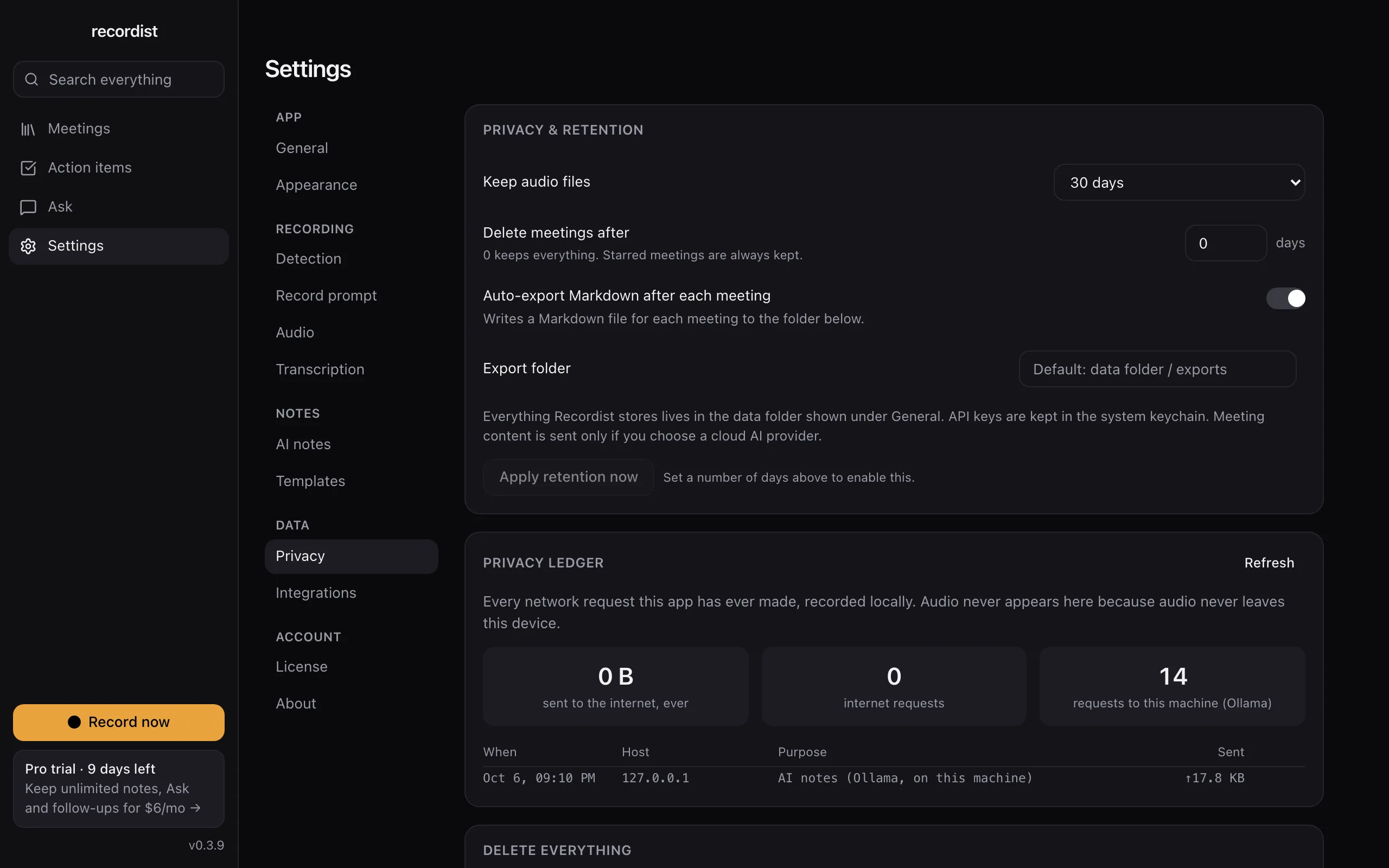
To see the interface before anyone installs anything, the browser demo is the real app with made-up meetings, and nothing is recorded.